
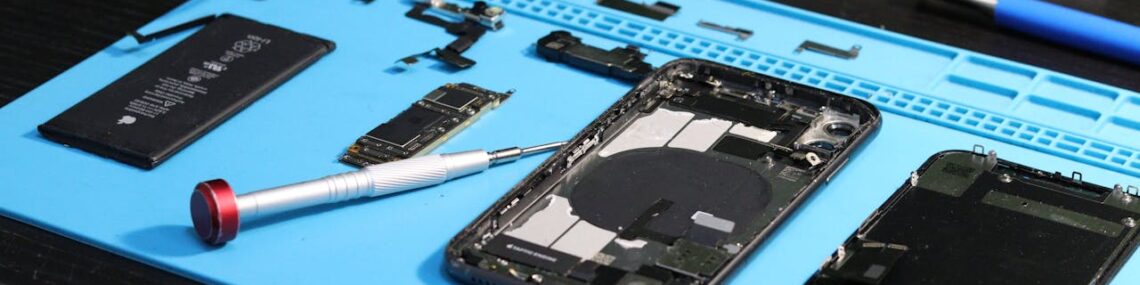
Smartphones have become an important part of everyday life. People use them for communication, work, entertainment, shopping, navigation, and social media. Because phones are used so frequently, problems such as slow performance, charging issues, app crashes, overheating, and battery drain can happen over time.
Many users immediately visit a repair technician when their phone starts malfunctioning, but some common smartphone problems can actually be fixed at home with simple troubleshooting methods. Understanding basic phone repair tips can help save time, money, and unnecessary stress.
In this blog, we will explore simple phone repair tips and troubleshooting solutions you should try before taking your device to a technician.
Restart Your Phone First
One of the easiest and most effective fixes for many smartphone issues is simply restarting the device.
Why Restarting Helps
Restarting clears temporary system errors, refreshes memory, and stops background processes that may be causing problems.
Problems a Restart Can Fix
- Slow performance
- Frozen apps
- Touchscreen lag
- Minor software glitches
- Temporary network issues
Many common issues disappear after a simple reboot.
Fix Slow Phone Performance
Over time, phones may become slower due to overloaded storage, background apps, or outdated software.
Simple Ways to Speed Up Your Phone
Clear Unnecessary Files
Delete unused apps, duplicate photos, and large files to free storage space.
Close Background Apps
Too many running apps can consume memory and slow performance.
Update the Operating System
Software updates often improve performance and fix bugs.
Restart Regularly
Restarting occasionally helps refresh system memory.
Maintaining free storage space can significantly improve smartphone speed.
Solve Battery Drain Problems
Fast battery drain is one of the most common smartphone complaints.
Tips to Improve Battery Life
Reduce Screen Brightness
High brightness consumes more battery power.
Turn Off Unused Features
Disable Bluetooth, GPS, and Wi-Fi when not in use.
Limit Background Apps
Some apps continue running and using battery in the background.
Enable Battery Saver Mode
Battery-saving modes help extend usage time during low battery situations.
Keeping apps updated can also improve battery optimization.
Fix Charging Issues
If your phone is not charging properly, the issue may not always require professional repair.
Check the Charging Cable
Damaged or low-quality cables can prevent proper charging.
Clean the Charging Port
Dust and lint inside the charging port may block connections.
Try a Different Adapter
Sometimes the charger itself is faulty rather than the phone.
Restart the Device While Charging
Software glitches occasionally interfere with charging detection.
Avoid using sharp objects when cleaning charging ports to prevent damage.
Deal with Overheating Problems
Phones may heat up during gaming, charging, or heavy app usage.
How to Reduce Phone Overheating
Remove the Phone Case Temporarily
Thick cases can trap heat.
Close Heavy Apps
Gaming apps and video editors may overload the processor.
Avoid Direct Sunlight
High temperatures can damage battery health.
Stop Charging While Gaming
Using the phone heavily during charging increases heat.
If overheating continues regularly, battery or hardware issues may need professional inspection.
Fix Apps That Keep Crashing
Sometimes apps suddenly stop working or close automatically.
Solutions for App Crashes
Update the App
Developers release updates to fix bugs and improve stability.
Clear App Cache
Corrupted cache files may cause app errors.
Reinstall the App
Removing and reinstalling the app often solves persistent issues.
Check Storage Space
Low storage can affect app performance.
App crashes are usually related to software rather than hardware damage.
Troubleshoot Wi-Fi and Network Problems
Weak internet connections can affect browsing, streaming, and online gaming.
Fixing Connectivity Issues
Restart Wi-Fi Router
A simple router restart often fixes connection problems.
Toggle Airplane Mode
Turning airplane mode on and off refreshes network connections.
Reset Network Settings
Resetting network settings may solve persistent connection errors.
Move Closer to the Router
Distance and obstacles can weaken Wi-Fi signals.
Mobile network issues may also depend on service provider coverage.
Repair Touchscreen Problems
Touchscreen issues can make phones difficult to use.
Simple Touchscreen Fixes
Clean the Screen
Dust, oil, and moisture may affect touch sensitivity.
Remove Screen Protectors
Damaged or poor-quality screen protectors can interfere with touch response.
Restart the Device
Minor touchscreen glitches may disappear after rebooting.
Update Software
Software bugs sometimes cause touch lag or unresponsive screens.
If cracks or display damage are visible, professional repair may be necessary.
Fix Storage Full Warnings
Low storage affects phone speed and app performance.
Ways to Free Storage
- Delete unnecessary screenshots
- Remove duplicate videos
- Clear app cache files
- Move files to cloud storage
- Uninstall unused apps
Maintaining free storage helps smartphones operate more smoothly.
Handle Water Damage Quickly
Water damage can seriously harm smartphones if not handled properly.
What to Do Immediately
- Turn off the phone
- Remove accessories and SIM cards
- Dry the exterior carefully
- Avoid charging the device immediately
What to Avoid
- Do not use a hair dryer
- Do not shake the phone aggressively
- Do not turn it on repeatedly
Professional repair may still be required for severe water damage.
Update Software Regularly
Software updates improve security, fix bugs, and optimize performance.
Benefits of Updates
- Better battery efficiency
- Improved app compatibility
- Security protection
- New features and stability improvements
Ignoring updates can lead to performance issues and security risks.
Backup Your Data Frequently
Phone repairs sometimes involve data loss, so regular backups are important.
Backup Options
- Cloud storage services
- External hard drives
- Computer backups
Backing up data protects photos, videos, contacts, and important files.
Signs You Should Visit a Technician
Some problems require professional repair and should not be ignored.
Common Serious Issues
- Broken screens
- Swollen batteries
- Water inside the display
- No power response
- Severe overheating
- Hardware failure
Attempting advanced repairs without proper knowledge may worsen the damage.
Tips to Prevent Future Phone Problems
Preventive care helps extend smartphone lifespan.
Smartphone Maintenance Tips
- Use a protective case
- Avoid overcharging
- Keep software updated
- Clean ports carefully
- Avoid extreme temperatures
Proper care reduces repair costs and improves long-term performance.
Conclusion
Many common smartphone problems can be solved at home with simple troubleshooting methods before visiting a repair technician. Restarting the device, cleaning charging ports, updating software, clearing storage, and managing battery usage can often fix performance issues quickly and safely.
